What every player asks
Joining alone, bringing friends, squads, tournaments, the room ID and password, and where updates live. Each in under a minute, with a video.
Join a match alone
Every match is free. Joining takes under a minute.
- 01
Open Matches and pick one that says Registration open.
- 02
Tap Join this match — or tap a team in the room that has an open seat, to join that team. First time here? You'll sign in with Google or email and come straight back.
- 03
On a team match there's one question — who's playing? Choose Just me. The first time, type your name in that game exactly as it is in the game and your mobile number, then tap Join. Joining accepts the rules and confirms you're 18 or older.
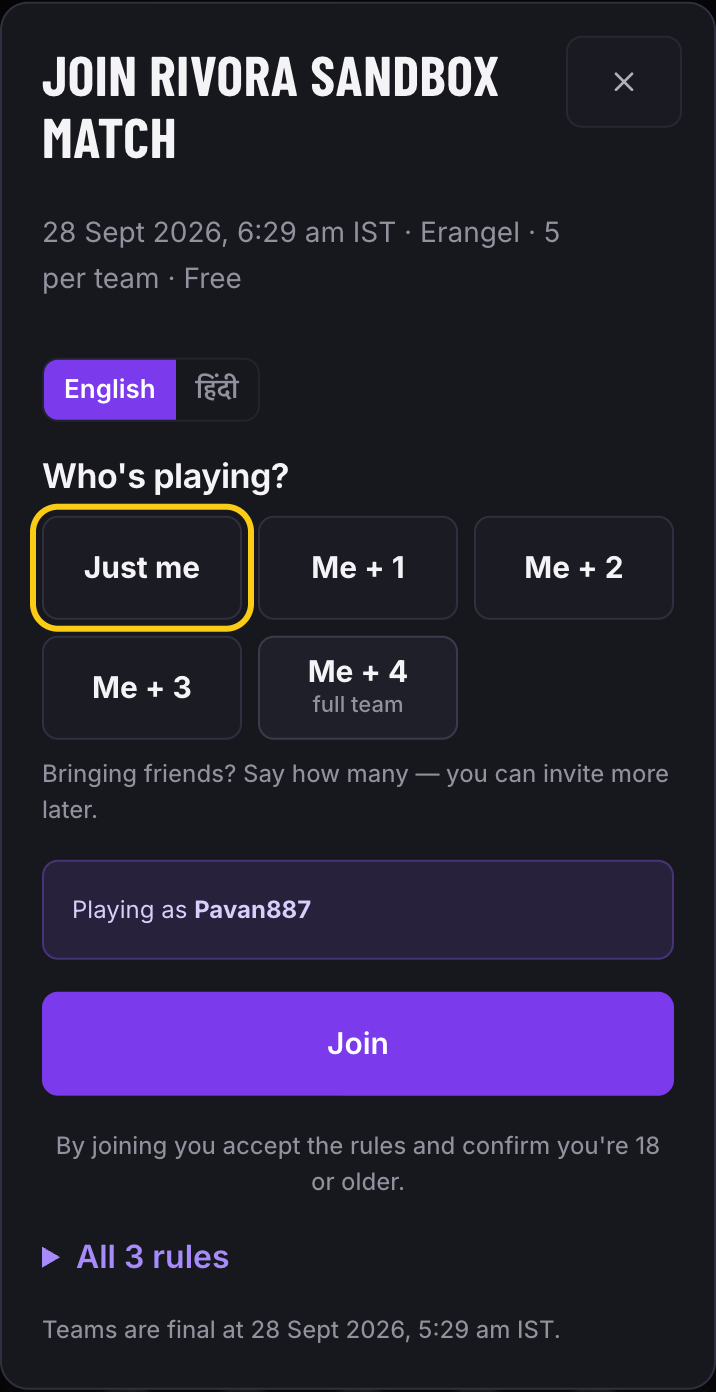
Screenshot · Right after Join this match — tap the outlined Just me, then Join. - 04
You're in a team straight away — the screen names it, and your card and the room show it. Players are only added to it. It changes only if someone needs a place and there's no other way in, and then we tell you.
- 05
Turn on match alerts — Telegram or push — when the screen asks. That alert is how you hear the room is ready. Some matches ask for it before you join.
The strip under the match title then shows where you are: Joined → Teams final → Room details → Live → Results. Lost on any match page? Tap ▶ Show me around under the title for a walkthrough.
Bring your friends
You don't type anyone's name. Say how many are coming, send one link, and each friend joins your team from it.
- 01
Tap Join this match and choose who's playing — Me + 1, Me + 2 or Me + 3. We keep that many seats in your team for your friends for one hour.
- 02
Send your team link on WhatsApp, right from the screen that says you're in — one link for the whole team.
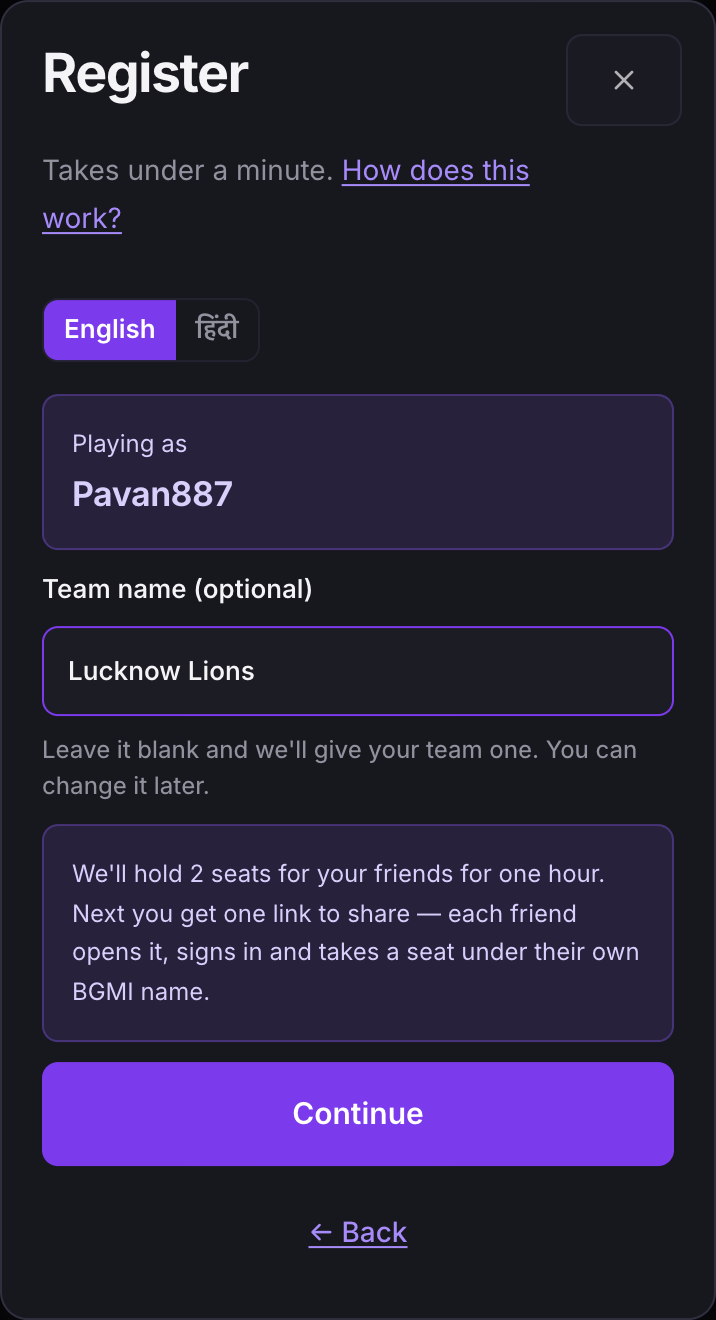
Screenshot · Right after joining with Me + 2 — send the outlined link to your friends. - 03
Each friend opens it, signs in and taps Join Team — that's all they do. The link keeps working while your team has room.
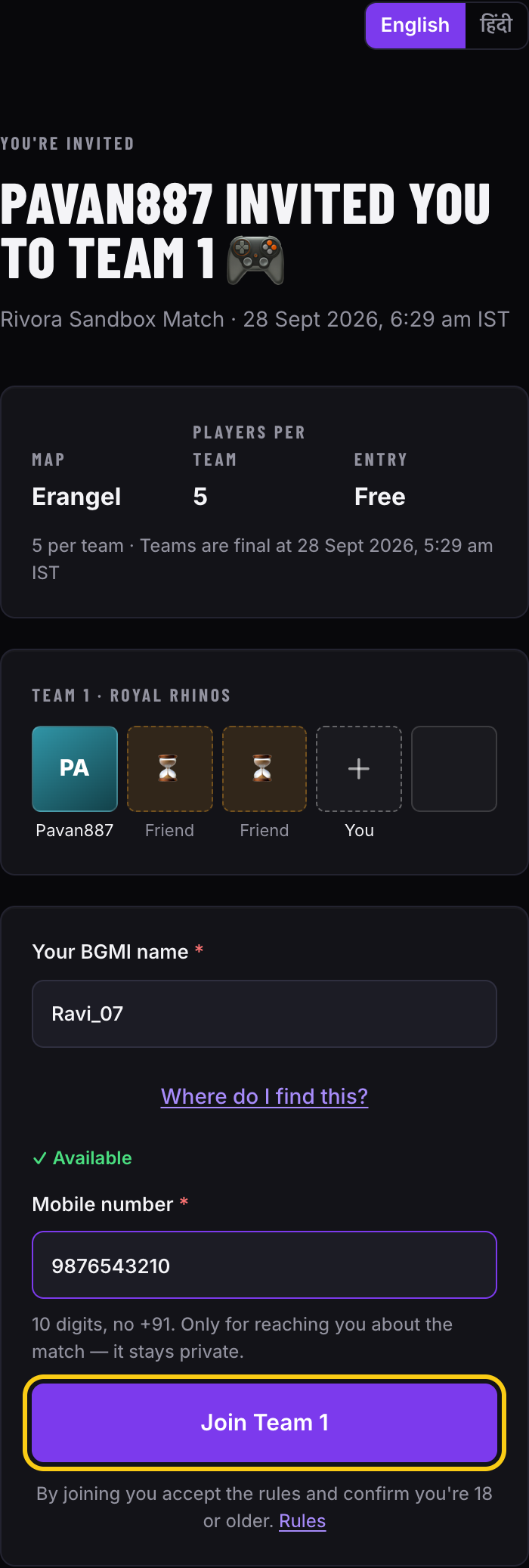
Screenshot · Your friend's screen, after opening your link. They tap the outlined Join Team. - 04
Your team card shows who's in and the seats still kept. Invite a friend keeps one more seat. Under Manage, a seat you kept can be opened to anyone — and if you joined with friends, you can take one of them off the team.
- 05
Anyone can leave from their card. Already in a team on your own? Your friend's link offers Move to their team.
A kept seat is your friend's for one hour — we remind you 15 minutes before it ends. After that anyone who joins can take it, and your link still works while your team has room. Open seats go to players who join, so your team may be completed with players you don't know; if nobody comes, your team plays with the players it has.
Play with your squad
Play with the same friends every week? Make a squad once, and join matches with them in one tap — no link to send each time.
- 01
On your profile, tap Make a squad. Give it a name — it becomes your team's name in a match — and pick Squad (4 players and a substitute) or Duo (2).
- 02
Send its link to your friends. Each opens it once, signs in and taps Join. Joining lets you, the captain, put them in matches with the squad.
- 03
On a match, tap Join this match and pick your squad under Who's playing. Untick anyone who can't make it, then tap Join with your squad.
- 04
Everyone ticked is in your team at once, and each gets an alert saying you added them and when the match starts.
Anyone you add can leave the match from its page while registration is open, and you're told when they do. Only the captain brings the squad into a match, and nobody is added back to a match they left. A player can be in up to 5 squads.
Join a tournament
Tap Join on the tournament's page and say how you're playing: as the captain, with a friend's squad, or alone. Every player has their own account and adds their details once.
- 01
Open the tournament from Tournaments and tap Join this tournament. Sign up or log in: every player needs their own account, because the room ID and prizes reach it. You come back to the tournament with the join sheet open.
- 02
Say how you're playing: I'm the captain, With a friend's squad, or Find me a squad. The first time, add your BGMI name and mobile number, then your BGMI UID, player level and UPI ID, where a prize goes. Tap Join.
- 03
As the captain: pick I'm the captain, then your squad or a new one, and tap Join. A new squad is named after you; rename it from your squad card. Send your friends the squad link: each friend who opens it and taps Join takes a seat straight away, and adds their own details before registration closes.
- 04
Alone: pick Find me a squad and tap Join. When registration closes, we fill the empty seats of short squads with players who joined alone, so you play in a squad of 4. Until then, friends can join you with your squad link.
- 05
Joining a friend's squad: open the squad link they sent you and tap Join there — or pick With a friend's squad on the join sheet and paste the link. Already in their squad? Your captain joins for everyone, and you have a seat once they do.
- 06
A substitute: a squad is 4 players plus 1 sub. Before registration closes, send your squad link to a 5th player: they sit on your squad's bench, beside the four seats. On match day the captain opens the match and taps Change Playing 4 to pick who plays; it stays for the rest of the group's matches.
- 07
Removing a player: the captain taps Manage players, then Remove. Before the groups are announced the player loses their seat. After, they're out of every match left and the room is closed to them. To rest someone for one match, change the Playing 4 instead.
Two links, two jobs. Your squad link is only for the players who play with you. To tell other squads, share the tournament itself: Send them the tournament, on its page.
Room ID and password
They appear at the top of the match page a few minutes before the start. They are never sent in a message.
- 01
Connect an alert channel — Telegram or push — in Notification settings. We use it to tell you the moment the room is ready.
- 02
The mobile number you gave when joining is what we reach you on. Joined before we asked for one? The match page says so — add it there.
- 03
When the alert comes, open the match. The room card is the first thing on the page: your team slot in big type, then the ID and password with Copy buttons.
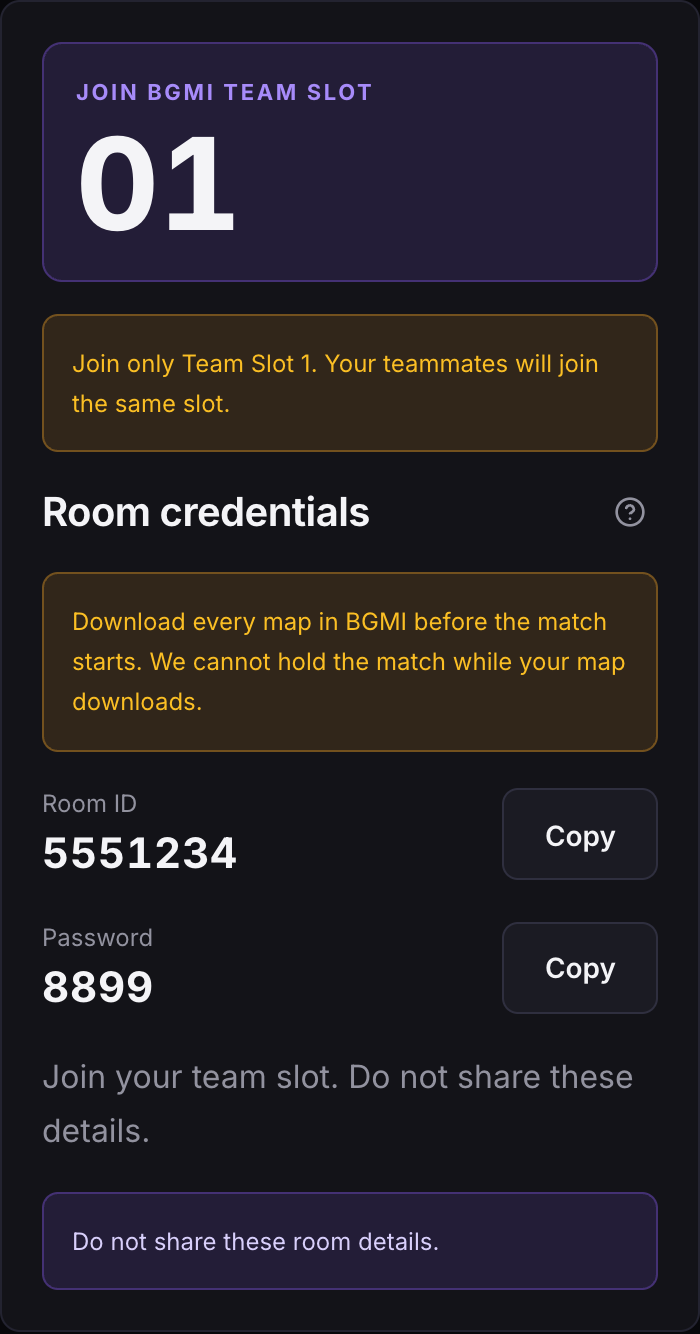
Screenshot · Top of the match page on match day. Outlined: your team slot, then the ID and password to copy. - 04
In the match's game — BGMI, Free Fire MAX or COD Mobile — join the room with that ID and password and sit in your team slot. Only your slot — your teammates will join the same one.
Download the major maps before match day — at least the one the match is on; the match page names it. If the room opens while your map is still downloading, you will miss it. On a phone, add Rivora to your home screen (Settings → Rivora on your home screen) so the room alert lands where you'll see it.
Where updates live
Two kinds, two places — and both reach your inbox.
- 01
About one match — room timing, a schedule change — is on that match's page, under Updates from the organizer at the bottom, and reaches you as an alert the moment it is posted.
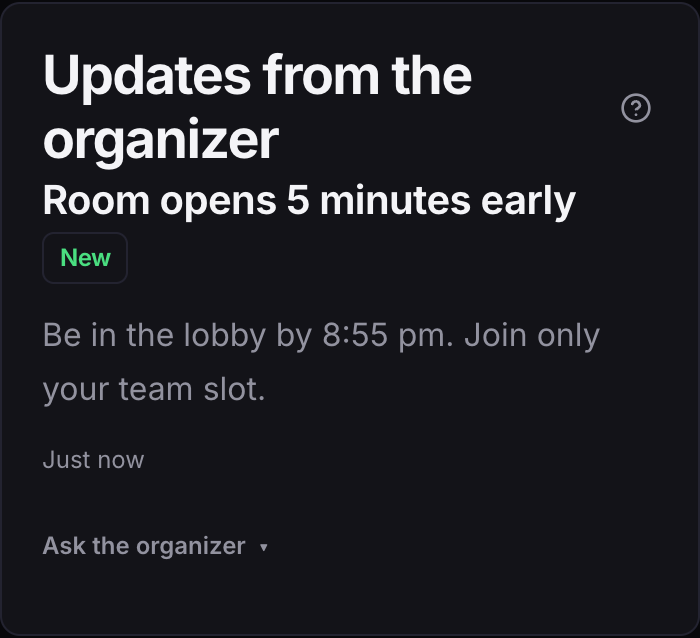
Screenshot · Bottom of a match page. The outlined post is the organizer's latest update. - 02
For every player — new matches, results, news — is on the Announcements page, linked at the foot of every page; the newest one also shows near the top of the home page.
- 03
The bell at the top of the page opens Updates, your inbox: everything Rivora has told you, with tabs for your matches and for announcements.
- 04
Connect Telegram or push alerts and all of it reaches your phone too.
Prefer email? Write to support@rivoragaming.com · Rules and eligibility · FAQ · More videos on YouTube